


futuredevice
Desk Terminal
Desk Terminal
This is hardware, not an automatic integration with your coding agent. Check the product’s software and setup requirements below; contact us with your operating system and intended workflow before ordering if you are unsure.
Check my setupShipping (USD): US Standard $15 below the free-shipping threshold; free on US orders over $70 after discounts. International tracked shipping $10 to supported destinations. Shipping details. Your address-specific total is shown at checkout before payment.
Tracked shipping · 30-day returns · Delivery estimates in our shipping policy
A small screen with a retro desktop shape. Desk Terminal brings a colour display and front indicator bar to your setup. Explore its listed clock and status faces, then confirm the supported interface before planning custom work information.
What is the Desk Terminal?
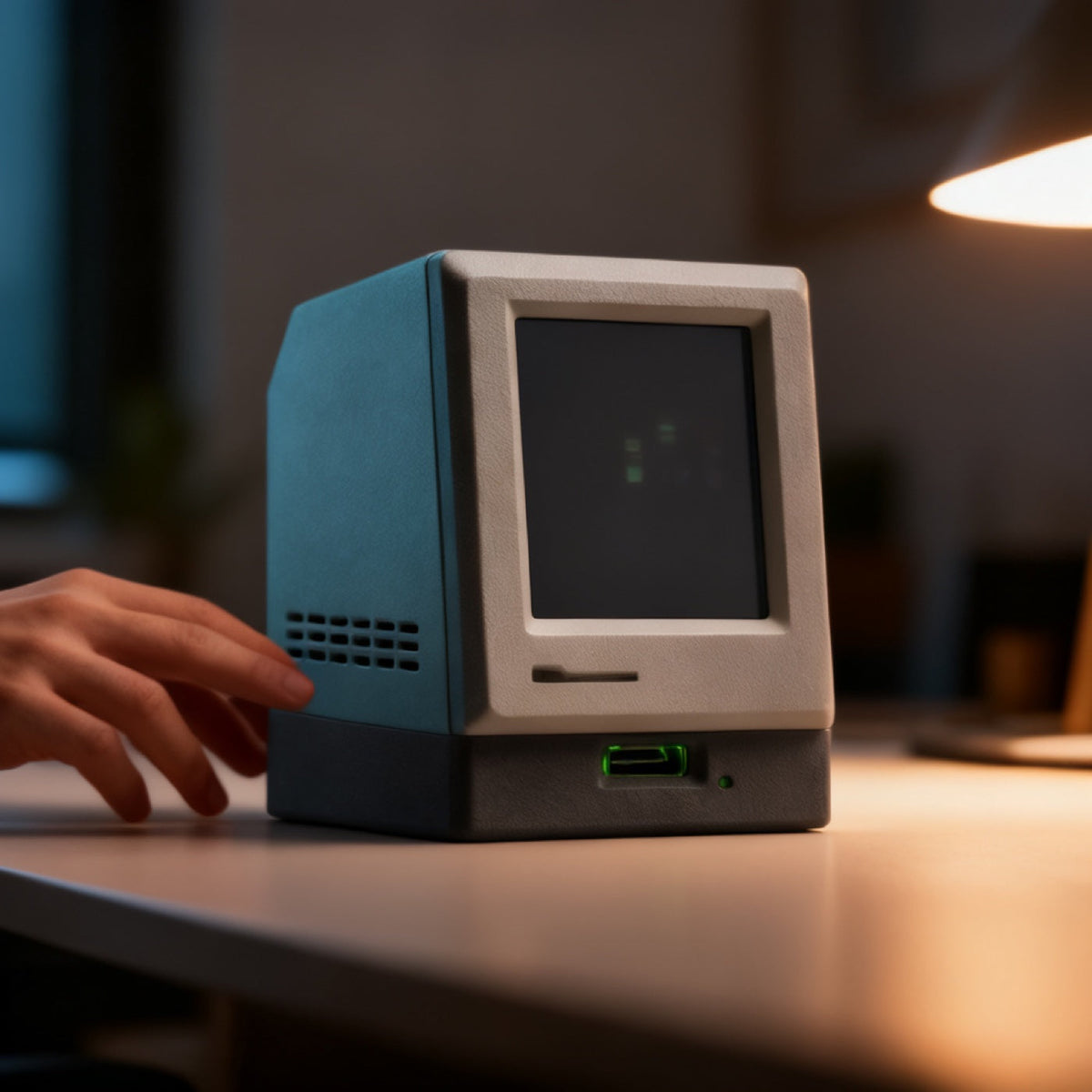
A miniature computer styled after an all-in-one desktop from 1984: teal-blue body, coarse grey front bezel, vent slits down the side, a small colour LCD set behind a recessed frame, and a green indicator bar glowing on the lower front. A speaker and microphone are built in.
What is the Desk Terminal for?
Choose Desk Terminal for a compact display beside your monitor and the look of a miniature retro computer. The listing describes stock clock and status faces. If you want build progress, a queue count or another live value, first confirm both the available data source and a supported way to send it to this device.
How do you use the Desk Terminal?
- Power the Desk Terminal over USB-C.
- Follow the supplied Wi-Fi setup instructions and check the network requirements. Some setup menus are in Chinese.
- Select a supported stock clock or status face. Confirm the language and information available in the face you intend to use.
- Place it where you can comfortably read it. Custom work-status use needs a confirmed display interface and accessible task events; it is not an automatic coding-agent integration.
Desk Terminal specifications
| Display | Small colour LCD, plus front status indicator bar |
|---|---|
| Network | Wi-Fi |
| Power | USB-C |
| Audio | Speaker and microphone on board |
| Footprint | About that of a coffee cup |
| SKU | FD-06 |
How does the Desk Terminal compare?
Compare the small screen with the three-lamp presentation of the Status Light. Decide whether your setup calls for a screen face or separate colour signals, then check the control requirements of each product. Readability depends on placement and viewing conditions; neither option establishes a simpler integration by itself.
Frequently asked questions
What can the Desk Terminal display?
The listing describes stock clock and status faces. Other information depends on what the firmware and supported control interface accept. Wi-Fi connectivity alone does not establish an API or arbitrary data input. Contact us with the information you want to show before ordering for a custom workflow.
Is the Desk Terminal a voice assistant?
The listing includes a speaker and microphone, and the manufacturer markets voice-assistant use. That does not confirm which voice functions, languages, accounts or services are available in your setup. If voice use is the reason for your purchase, ask us to confirm those requirements before ordering.
What language is the interface in?
The stock firmware is the manufacturer's and parts of its menus are in Chinese. We would rather tell you that now than have you discover it after delivery.
What to know before buying
The stock firmware comes from the manufacturer, and some menu text is in Chinese. Confirm the language of the particular screen face and any voice function you intend to use. Do not assume every display or service is language-neutral.
Dispatch in 1–2 business days. US transit normally 7–12 days; international transit estimated at 7–14 business days. You get the tracking link the minute it exists. Free US shipping over $70 after discounts; $15 US Standard below the threshold. International tracked shipping is $10. Thirty-day returns.


Field notes on this object
What it changes on a real desk, what it does not, and who should buy something else.
- A Second Screen for Codex CLI's Long Tasks
- The Browser Tab You Keep Open, Moved Off Your Screen
- Giving GitHub Copilot's Longer Tasks a Screen of Their Own
- A Second Screen for the One Number Gemini CLI Makes You Check
- An Ambient Screen for the One Cursor Metric You Keep Checking
- Replacing a Browser Tab With a Screen for Claude Code's Status